Your home energy system is part of a wider connected home. Home Assistant brings energy information, compatible smart devices and everyday routines into one place. For supported HYXI Aura installations, it can help you understand how your home generates, stores and uses electricity, then turn those insights into useful reminders and automations.
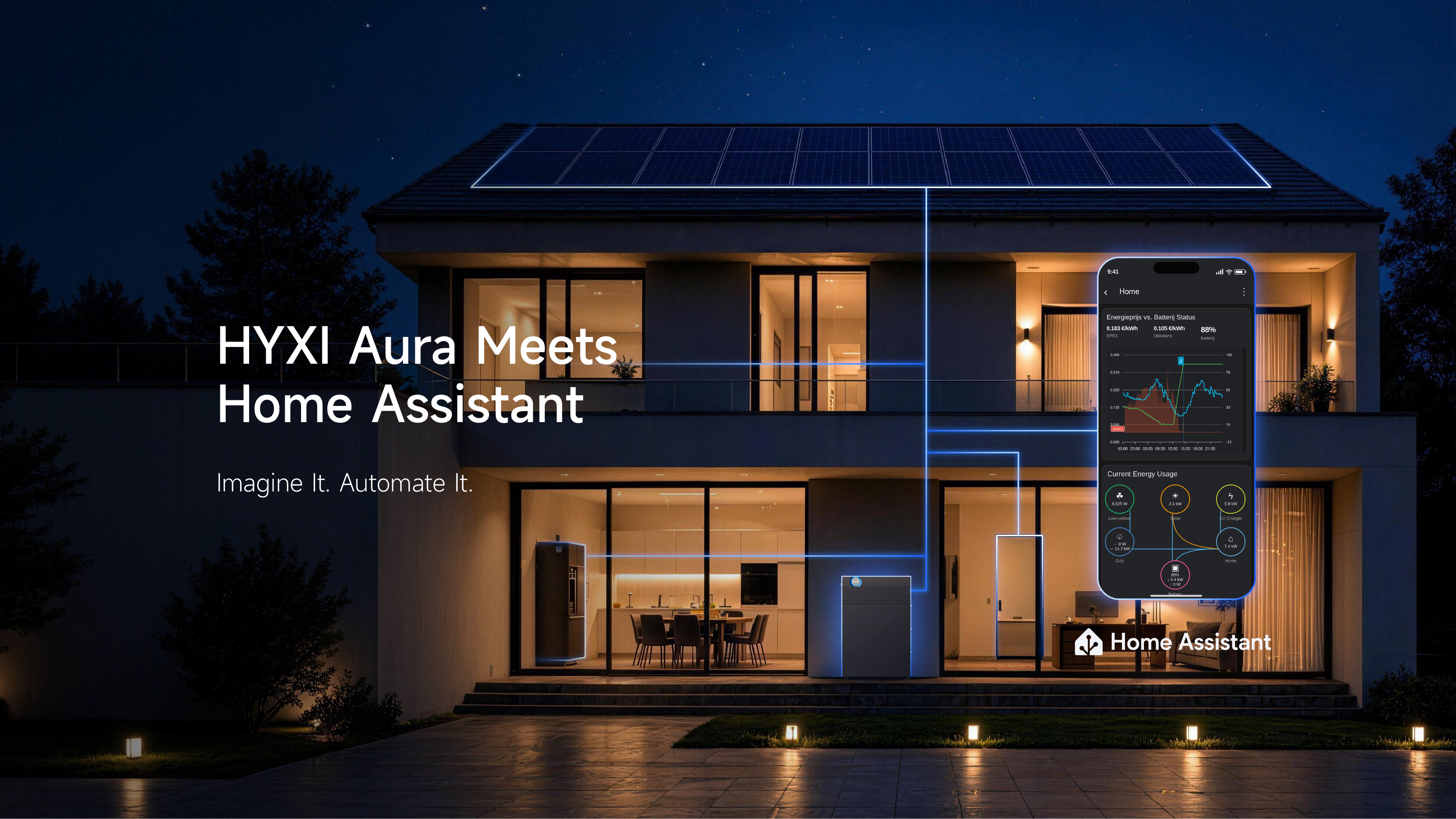
What is Home Assistant
Home Assistant is a free, open-source smart home platform. It connects compatible devices and services from different brands, allowing you to monitor them through personalized dashboards and create automations around your daily needs. An integration is the software connection that lets Home Assistant communicate with a particular device or service. [1]
Home Assistant runs on a hub or computer in your home. You can access it through a web browser or the Home Assistant Companion app on a phone or tablet. The mobile app connects to your Home Assistant server; you need that server running before you can use the app. [2, 3]
For home energy management, Home Assistant can help you:
· See the bigger picture. Bring available solar, battery and grid information together with other connected devices. · Stay informed. Receive a notification when a measured value or device status meets a condition you choose. · Create useful routines. Use available energy data as a trigger for another compatible device, or as a reminder to adjust your electricity use.
Home Assistant prioritizes local control and privacy. However, each integration has its own connection requirements. The HYXI Cloud connection described below requires internet access to retrieve HYXI data, even though Home Assistant itself runs in your home. [4]
How to Use HYXI Aura with Home Assistant
The following steps use the community-maintained HYXI integration available through HACS. Confirm compatibility for your specific Aura model and firmware with HYXI before starting; the public supported-device list does not identify Aura models individually. The measurements and functions you see depend on your device, account access and integration version. [5, 6]
Before you start
· Make sure your HYXI Aura system has been commissioned, is linked to your HYXI account and is uploading data normally.
· Prepare a working Home Assistant server. If you are new to Home Assistant, follow its official installation guide for your chosen hardware, such as Home Assistant Green or a supported computer. [2] · Have access to the HYXI account associated with your device and keep the internet connection available for cloud monitoring.
Step 1 Install the HYXI integration
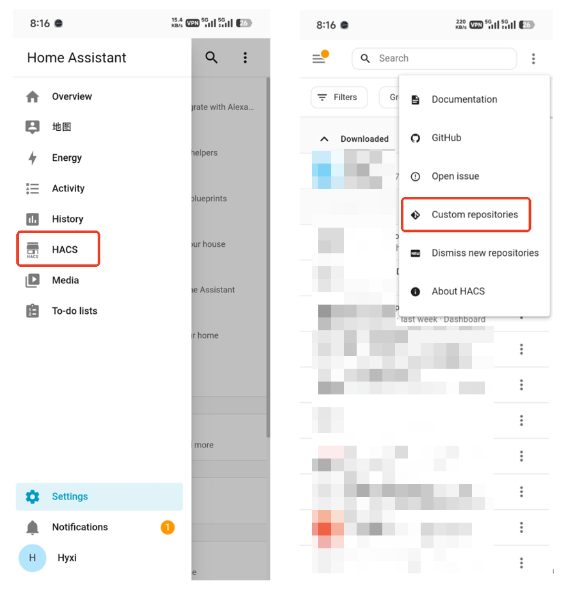
HACS stands for Home Assistant Community Store. It helps you download and manage custom integrations. If it is not available in your Home Assistant installation, follow the HACS setup instructions for your Home Assistant version first. [7]
1. Open HACS and search for HYXI. 2. Open the integration page and select Download. 3. Restart Home Assistant after the download completes. If HYXI does not appear, open HACS > menu > Custom repositories, add https://github.com/Veldkornet/ha-hyxi-cloud with the category Integration, then search and download again. [5]
Step 2 Obtain your HYXI API credentials
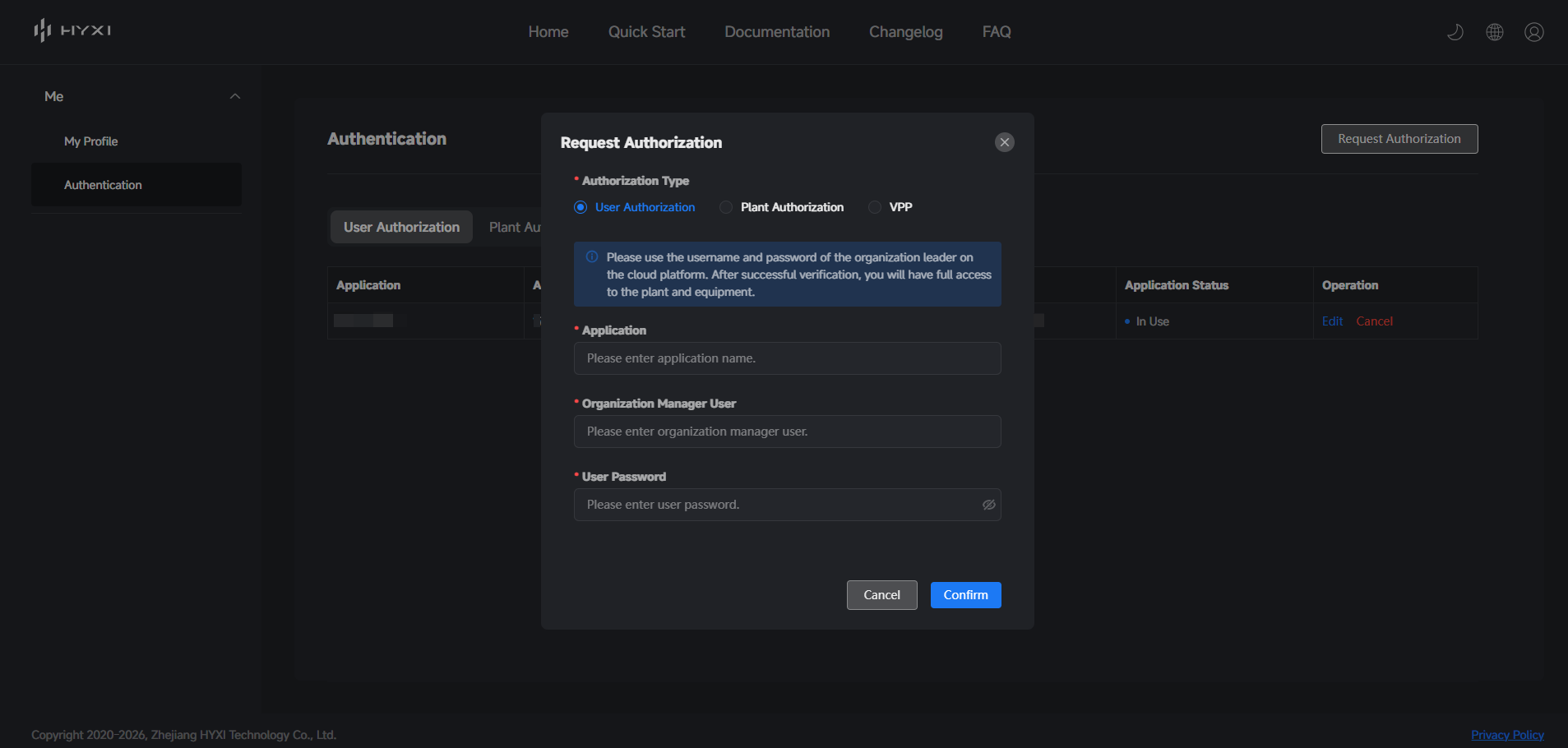
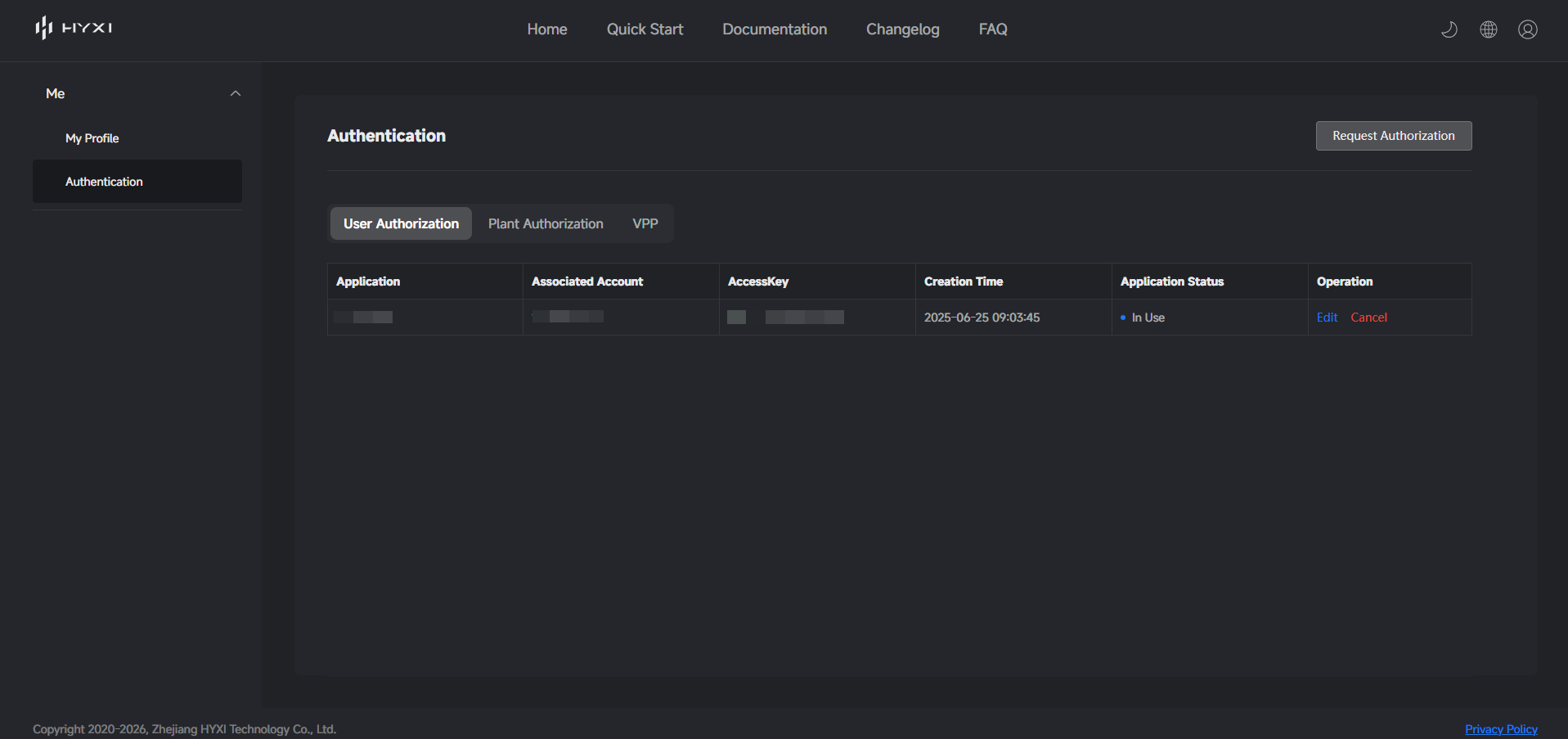
1. Open the HYXI Developer Platform at https://open.hyxicloud.com/.
2. Sign in using the same email address associated with your devices in the HYXI app. 3. Create an application and obtain an Access Key and Secret Key with User Authorization.
These two keys authenticate the cloud connection. Use them in the integration setup instead of your HYXI app password. [8]
Step 3 Connect to HYXI Cloud
1. In Home Assistant, go to Settings > Devices & services > Add integration. 2. Search for HYXI and select HYXI Cloud as the connection method. 3. Enter your Access Key, Secret Key and the Region matching your HYXI account. 4. Select Submit and allow the initial synchronization to finish.
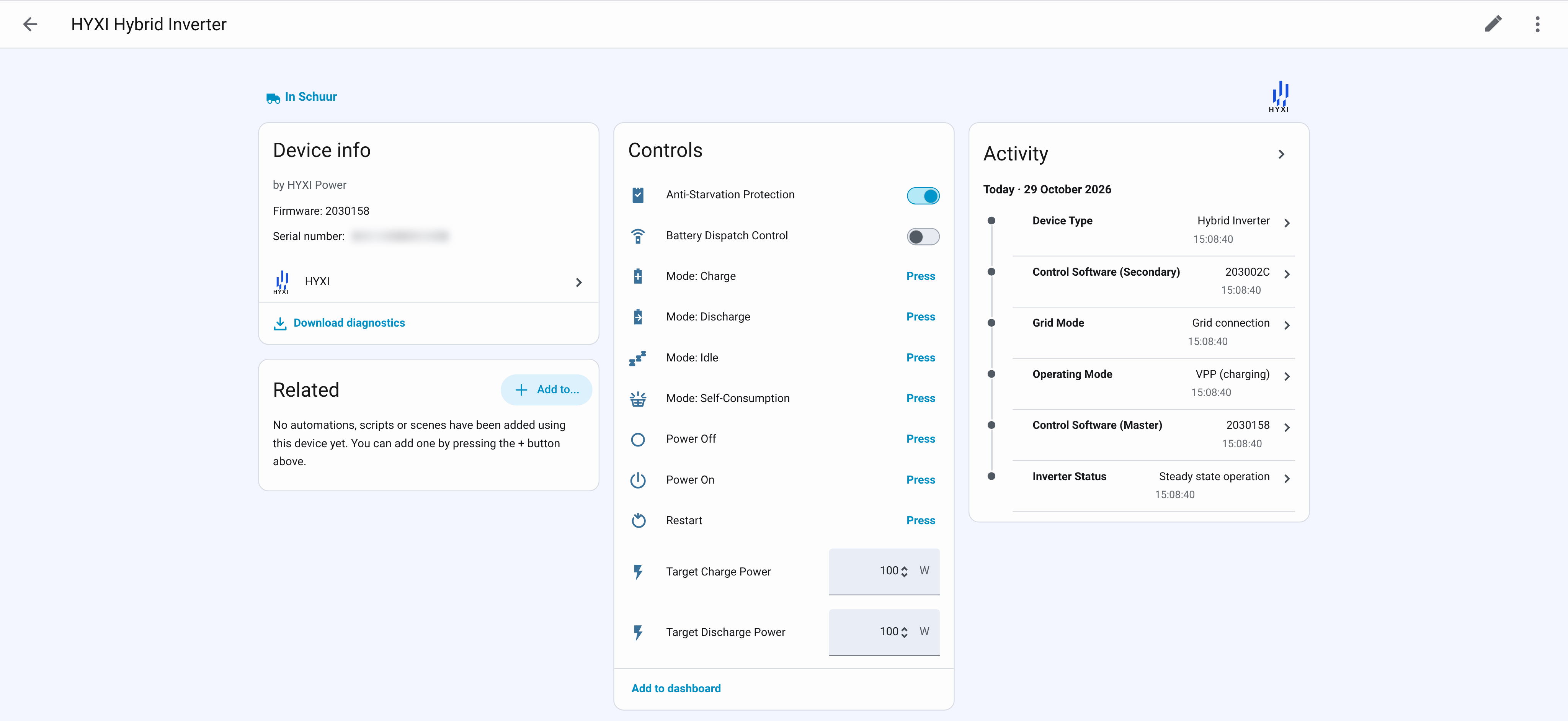
The integration will discover supported devices and create their available entities. An entity represents one measurement or function, such as battery state of charge or solar power. You can review them under Settings > Devices & services > HYXI. [8, 9]
Step 4 Build your monitoring dashboard
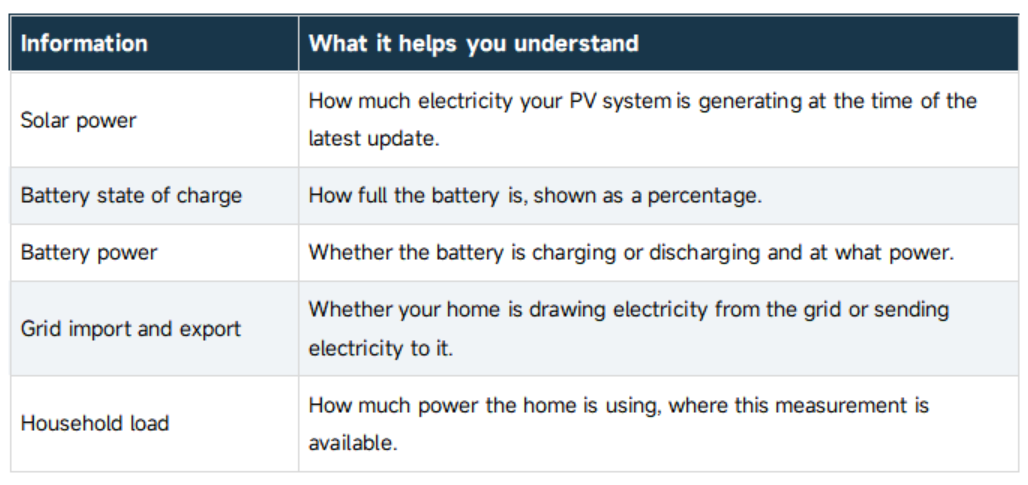
Add available entities to your dashboard using value cards, gauges or history graphs. Compare readings and update times with the HYXI app; cloud upload and polling intervals can cause delays. Depending on your system, you may see: [8, 9]
Step 5 Add energy statistics
Use Home Assistant's Energy dashboard to track energy use over time. Select the cumulative energy entities available from your system using these mappings: [10]
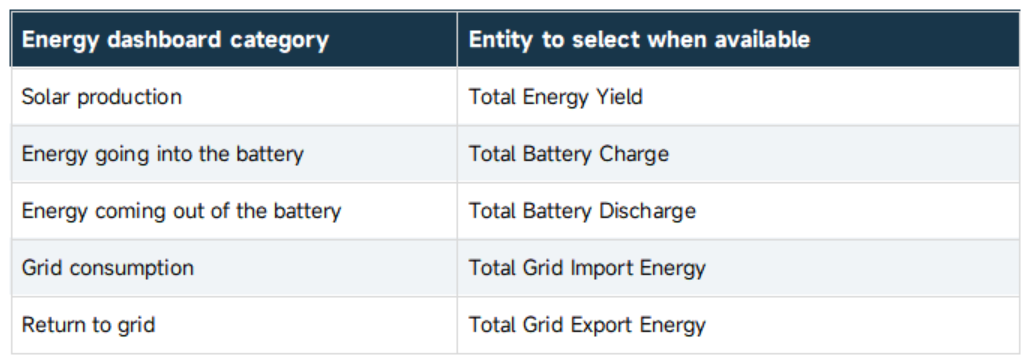
Use energy measurements in kWh for these energy totals. Instantaneous power in W or kW, and battery charge in %, are useful monitoring values but do not replace cumulative energy counters. Only select entities that your installation provides and Home Assistant accepts. [11]
Step 6 Create your first automation
A battery notification is a useful first example. It uses the reported SOC value and does not need permission to change the battery's operating mode.
1. Go to Settings > Automations & scenes and select Create automation > Create new automation. 2. Choose a numeric state trigger and select the battery SOC entity from your installation. 3. For this example, set the trigger to below 25% for 10 minutes. 4. Choose Create persistent notification as the action and enter a message, for example: Battery charge is below 25%. Review your energy dashboard. Save the automation.
This action displays a notification in Home Assistant. The threshold and duration are illustrative; adjust them to your preferences. Test the notification action, then check the automation trace when the trigger occurs. Home Assistant's visual editor lets you combine triggers, conditions and actions without writing code. [12, 14]
You can also create a reminder when sustained solar export suggests a useful time to run a flexible household load. Directly switching that load requires its own compatible Home Assistant integration. For example, an energy reading from Aura could inform a routine that acts on a separately connected smart plug.
Step 7 Access your dashboard on your phone
Install the Home Assistant Companion app, connect your phone to your home network and select your Home Assistant server. Sign in with your Home Assistant account. If the server is not discovered, enter its address manually. Remote access from outside the home requires an additional remote-access setup. [3]
Understand the available battery controls
Monitoring and battery control are separate capabilities. In the currently documented community integration, the HYXI Cloud connection with personal API credentials does not expose battery charging or discharging controls. You can still use the available readings for dashboards, notifications and automations involving other supported devices. [13]
Before planning direct Aura battery control, confirm a supported control method for your exact model and firmware with HYXI. Where such control is available, coordinate it with the existing HYXI operating mode and any external energy service to prevent competing schedules. Local connection support should be checked separately from cloud monitoring support.
Useful links and references
[1] Home Assistant overview and free software FAQ
https://www.home-assistant.io/faq/is-it-free/
[2] Home Assistant installation guide
https://www.home-assistant.io/installation/
[3] Home Assistant Companion app setup
https://companion.home-assistant.io/docs/getting_started/
[4] Home Assistant internet connection requirements
https://www.home-assistant.io/faq/works-without-internet
[5] HYXI community integration and HACS download instructions
https://github.com/Veldkornet/ha-hyxi-cloud
[6] HYXI community integration supported devices
https://github.com/Veldkornet/ha-hyxi-cloud/wiki/Supported-Devices
[7] HACS setup documentation
https://www.hacs.xyz/docs/use/download/download/
[8] HYXI community integration installation and cloud configuration
https://github.com/Veldkornet/ha-hyxi-cloud/wiki/Installation-Guide
[9] HYXI community integration available sensors
https://github.com/Veldkornet/ha-hyxi-cloud/wiki/Available-Sensors
[10] HYXI community integration Energy dashboard setup
https://github.com/Veldkornet/ha-hyxi-cloud/wiki/Energy-Dashboard-Setup
[11] Home Assistant energy management FAQ
https://www.home-assistant.io/docs/energy/faq/
[12] Home Assistant automation editor
https://www.home-assistant.io/docs/automation/editor/
[13] HYXI community integration device control documentation
https://github.com/Veldkornet/ha-hyxi-cloud/wiki/Device-Control
[14] Home Assistant persistent notifications
https://www.home-assistant.io/integrations/persistent_notification/